THE RIGHT TOOLS, TOGETHER
A complete brief.
A ready batch.
Go beyond a compression slider. Bring size, format, dimensions and metadata into one repeatable image workflow.
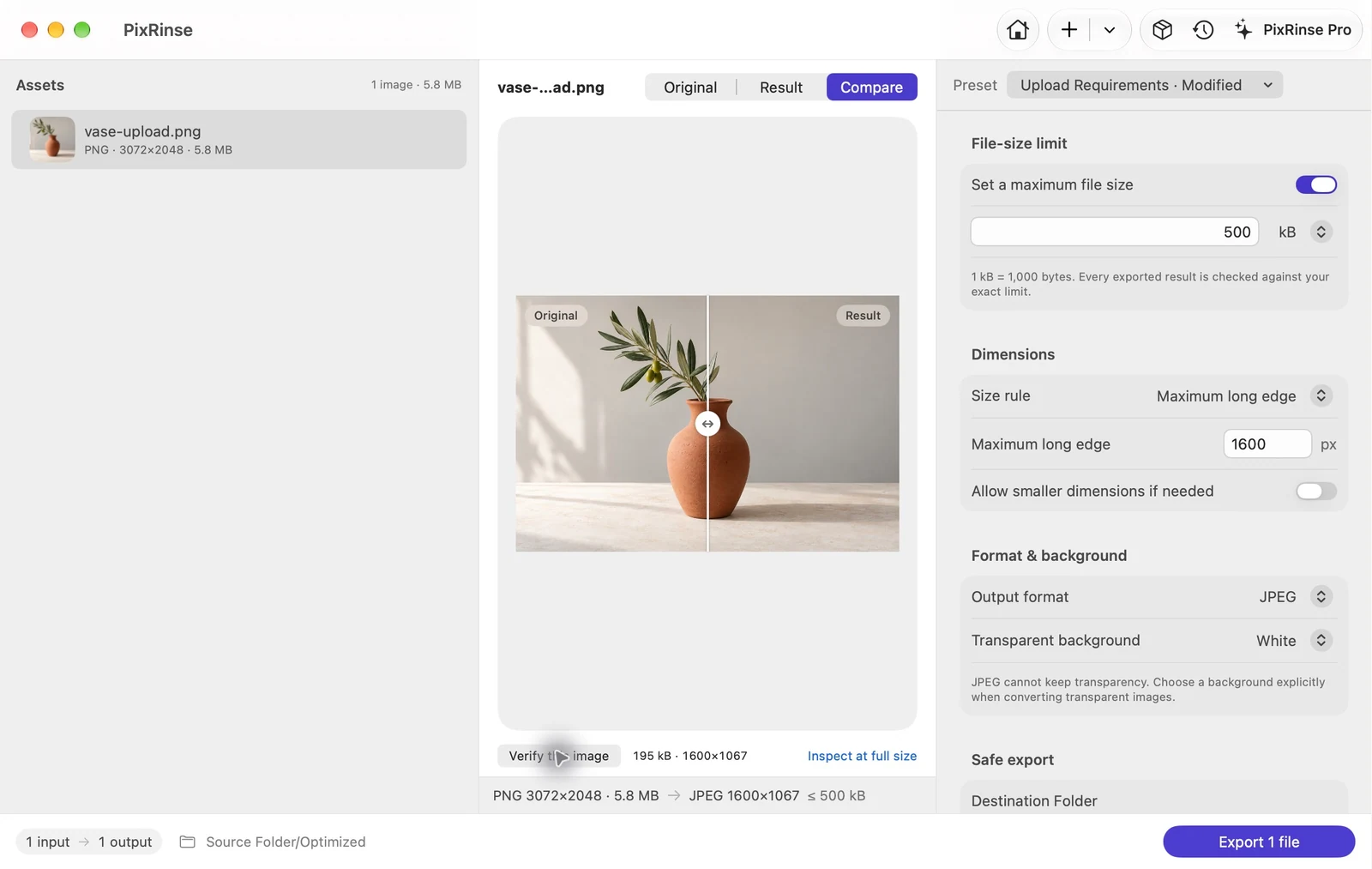
Give the batch
a clear destination.
Set a maximum file size, choose dimensions and select the output format. Then inspect the result.
Use long-edge, fit, crop or canvas rules as appropriate. Decide how transparency should be handled when the destination format needs an opaque background. Exported outputs are checked against configured requirements.
Prepare an upload-ready image ↗ONE SOURCE. MORE PLACES TO GO.
A useful set of sizes, in one run.
Choose iOS scales, Android densities, responsive web widths or a favicon PNG set. Pro enables multiple outputs per source.
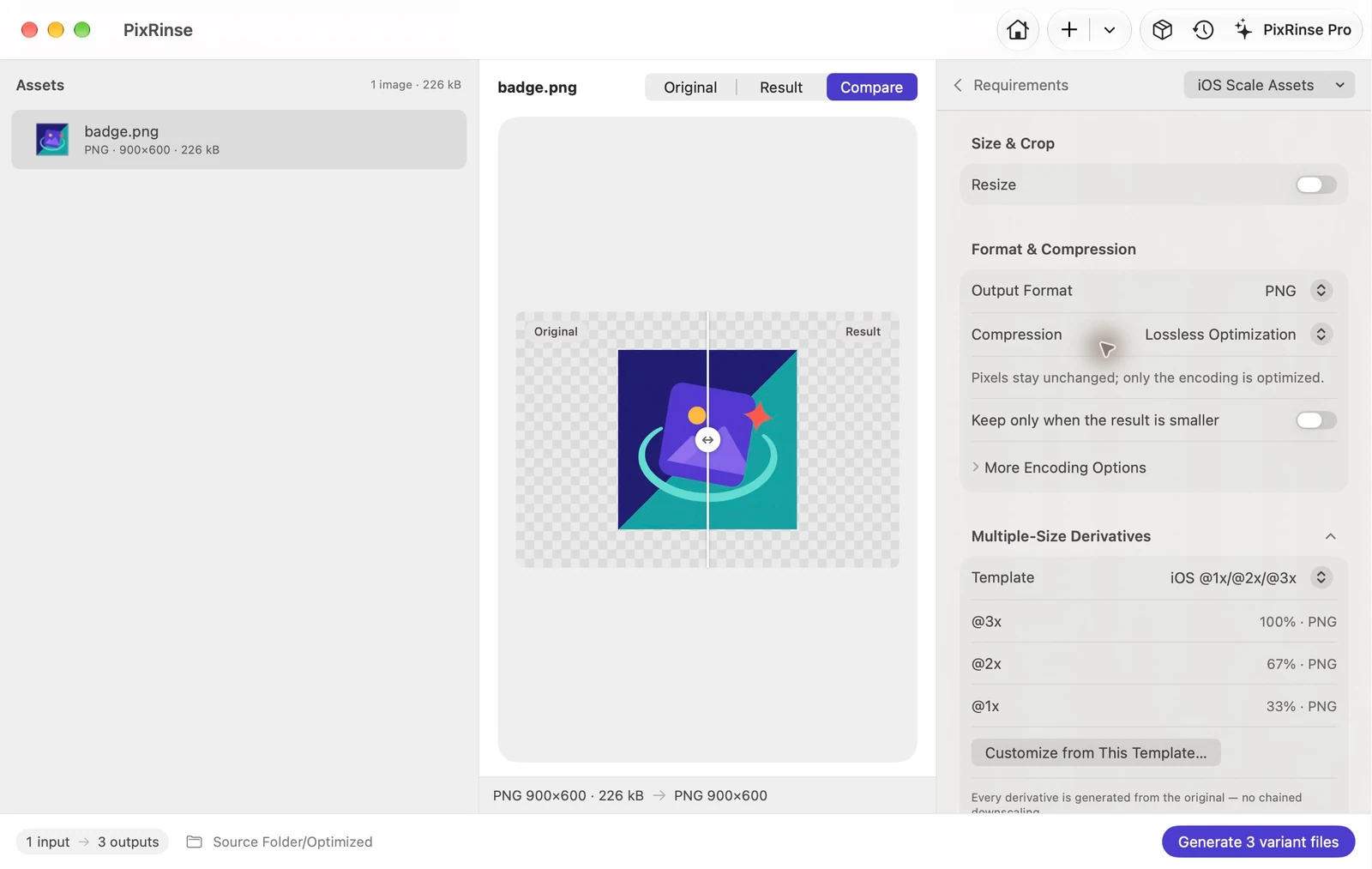
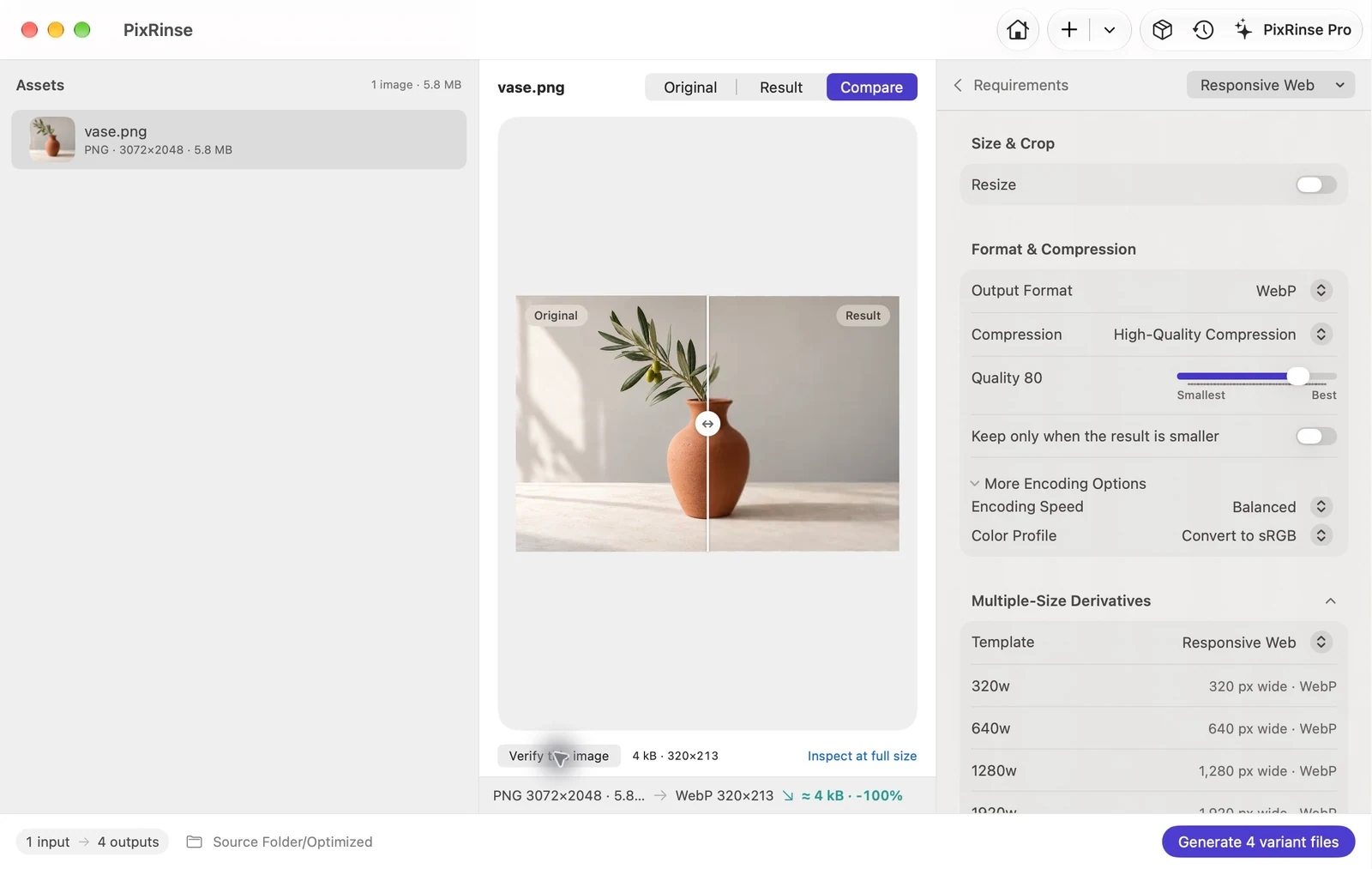
Output availability depends on the codec. Inputs also include BMP and GIF; animation preservation is not promised.
REPEAT WORK, WITHOUT THE REBUILD
Your settings.
Your next delivery.
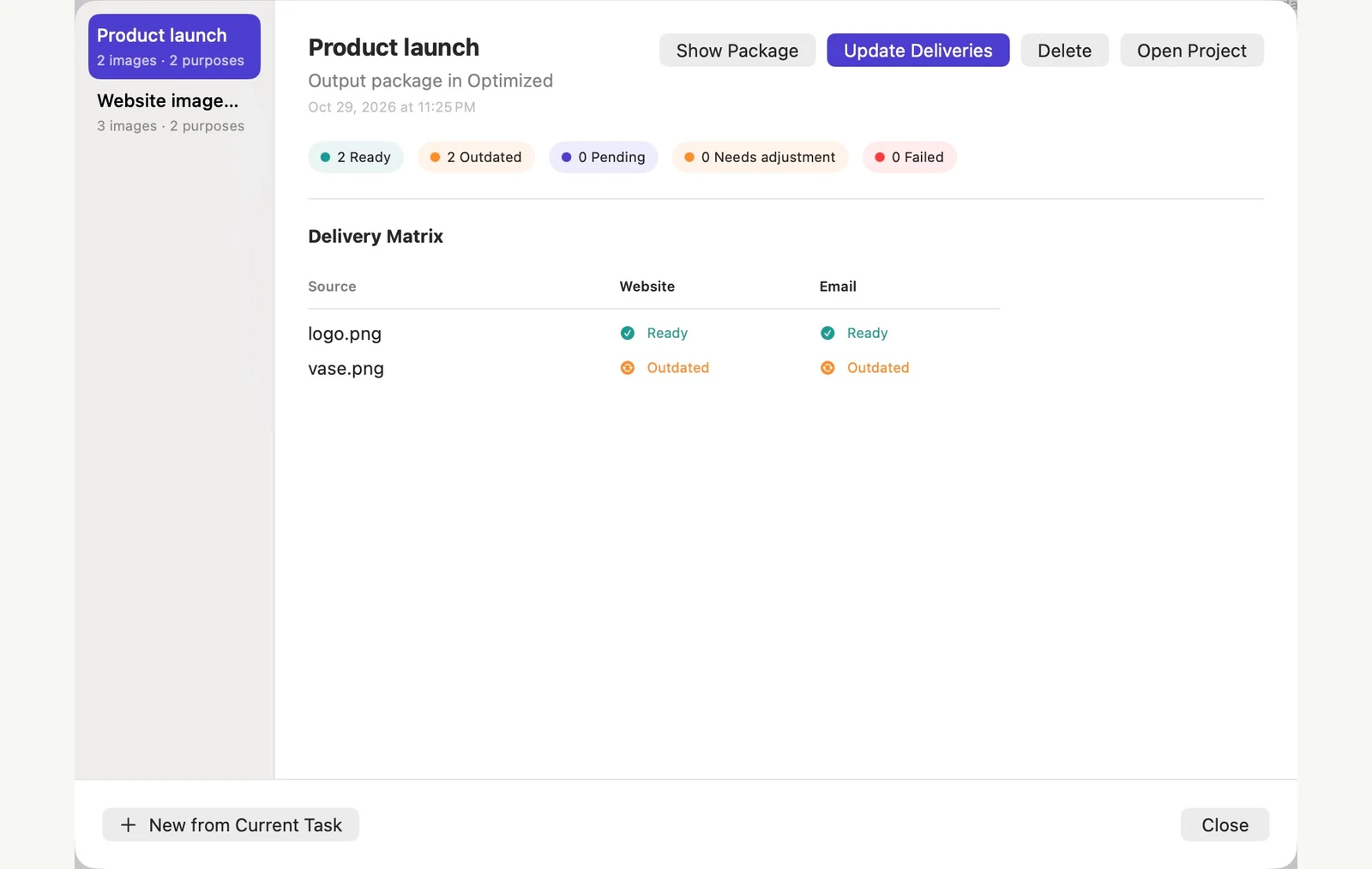
Save a custom preset for a repeat task. Use Delivery Projects when you need to track the same sources across several delivery purposes.
Care for the files
behind the finished work.
Export copies. Choose what metadata stays. Review replacement settings before making a deliberate change to originals.
Explore safety & privacy ↗LESS GUESSWORK. MORE DOING.
Find a workflow for your next task.
Meet an upload limit
Compress an image to 500 KB on Mac
Read the guide Web & designGive product photos a consistent canvas
Make 1200 × 1200 white-background product images on Mac
Read the guide Developer assets · ProExport Android drawable folders
Generate Android density assets on Mac
Read the guide
A lighter way to finish
Your next batch,
already less work.
Start with a few images. Find your everyday workflow.
Download for MacmacOS 14 or later · Free to start · No account required