 PixRinse
Screenshots show the English app. Preset names and controls are also available in your app language.
Your starting point
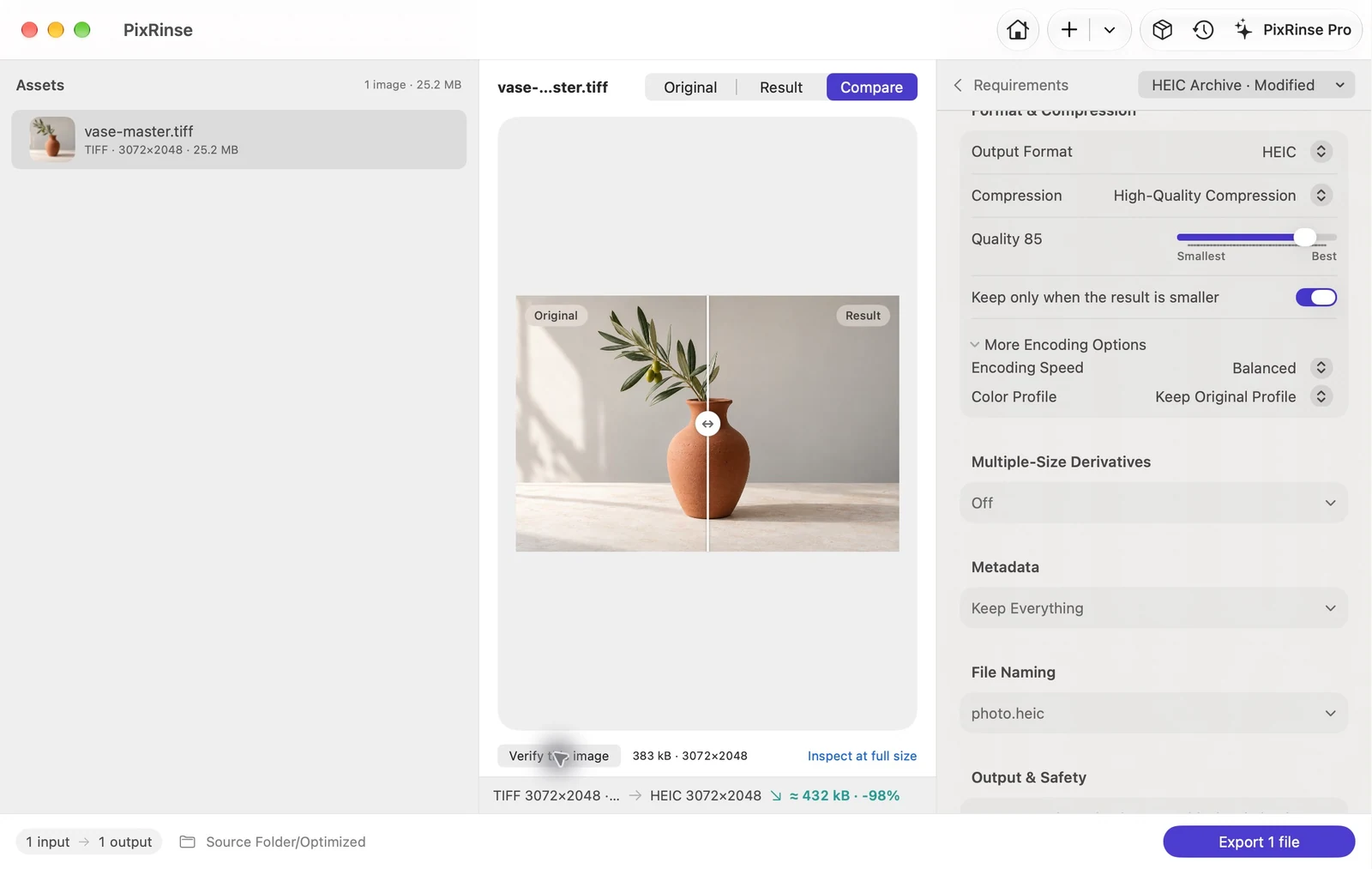
Use HEIC Archive · customize in PixRinse, then review these settings against your actual destination.
| Output | HEIC, quality 85 |
|---|---|
| Dimensions | No resize |
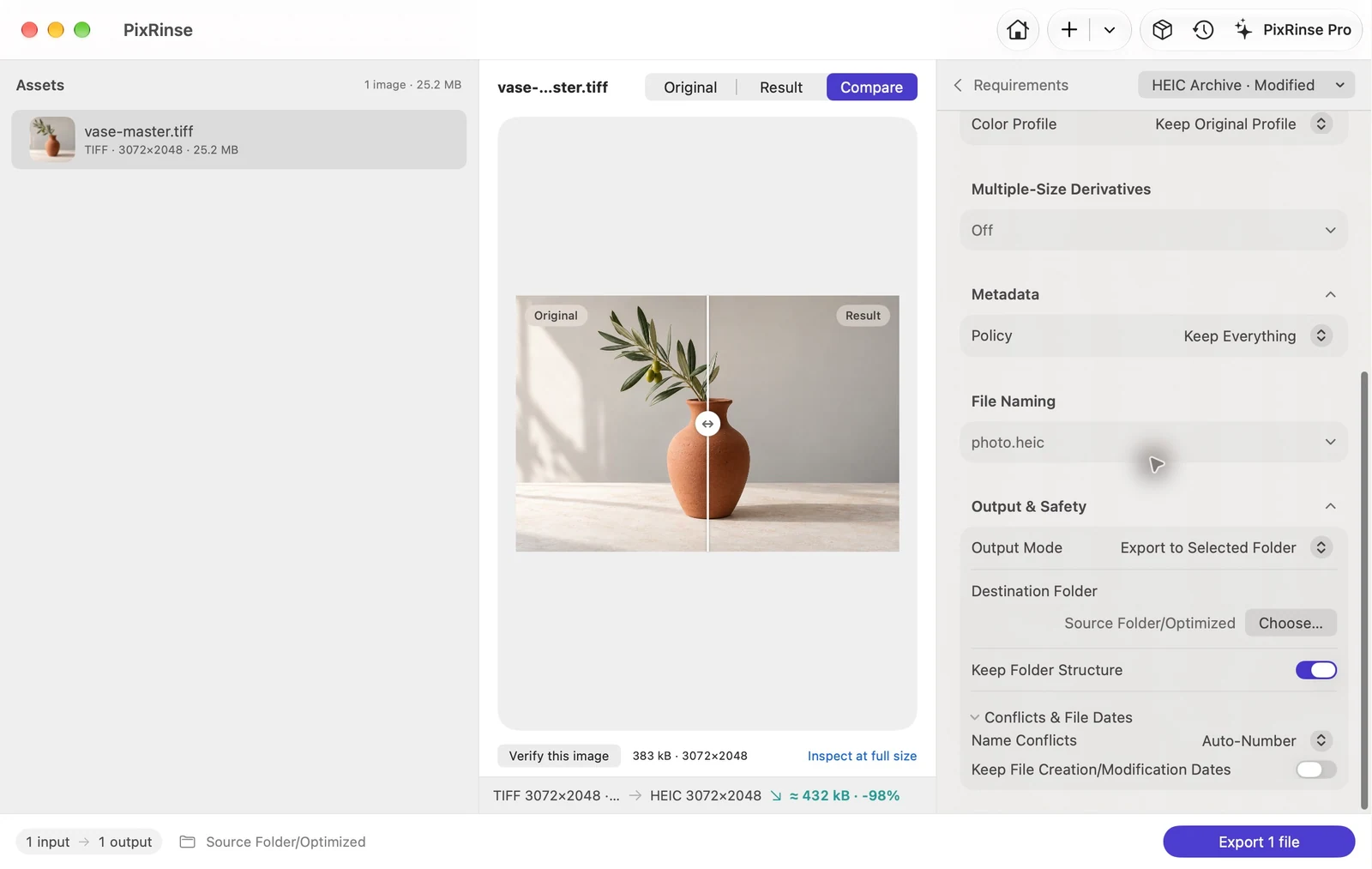
| Metadata | Preserve all, including capture date and copyright |
| Folder structure | Preserve |
| File dates in this example | Use new export timestamps |
How to do it
Keep an independent original archive
Choose the source folders you want to process. This workflow makes compact copies and should not become your only backup.
Select HEIC Archive
Keep the preset’s HEIC quality 85, original dimensions, original color profile, all metadata and folder structure. In Output & Safety, turn off Keep File Creation/Modification Dates for this walkthrough; embedded capture dates remain part of the image metadata.
Review “keep only if smaller” results
The preset retains a new result only when it is smaller. Already compact HEIC files may be skipped or remain unchanged.
Export and verify the archive
Check visual quality, dates and important metadata in representative files. Confirm that the software used to open the archive supports HEIC.
THE FILES FROM THIS WALKTHROUGH
What this example produced
A 25,171,132-byte TIFF becomes a 383,416-byte HEIC with the same dimensions. Embedded location and capture date remain. This example deliberately uses new filesystem timestamps.
- Quality
- 85 — lossy
- Embedded GPS and capture date
- Retained
- Keep folder structure
- On
- Keep file creation/modification dates
- Off in this walkthrough
| File | Format | Pixels | Bytes |
|---|---|---|---|
| vase-master.heic | HEIC | 3072 × 2048 | 383,416 |
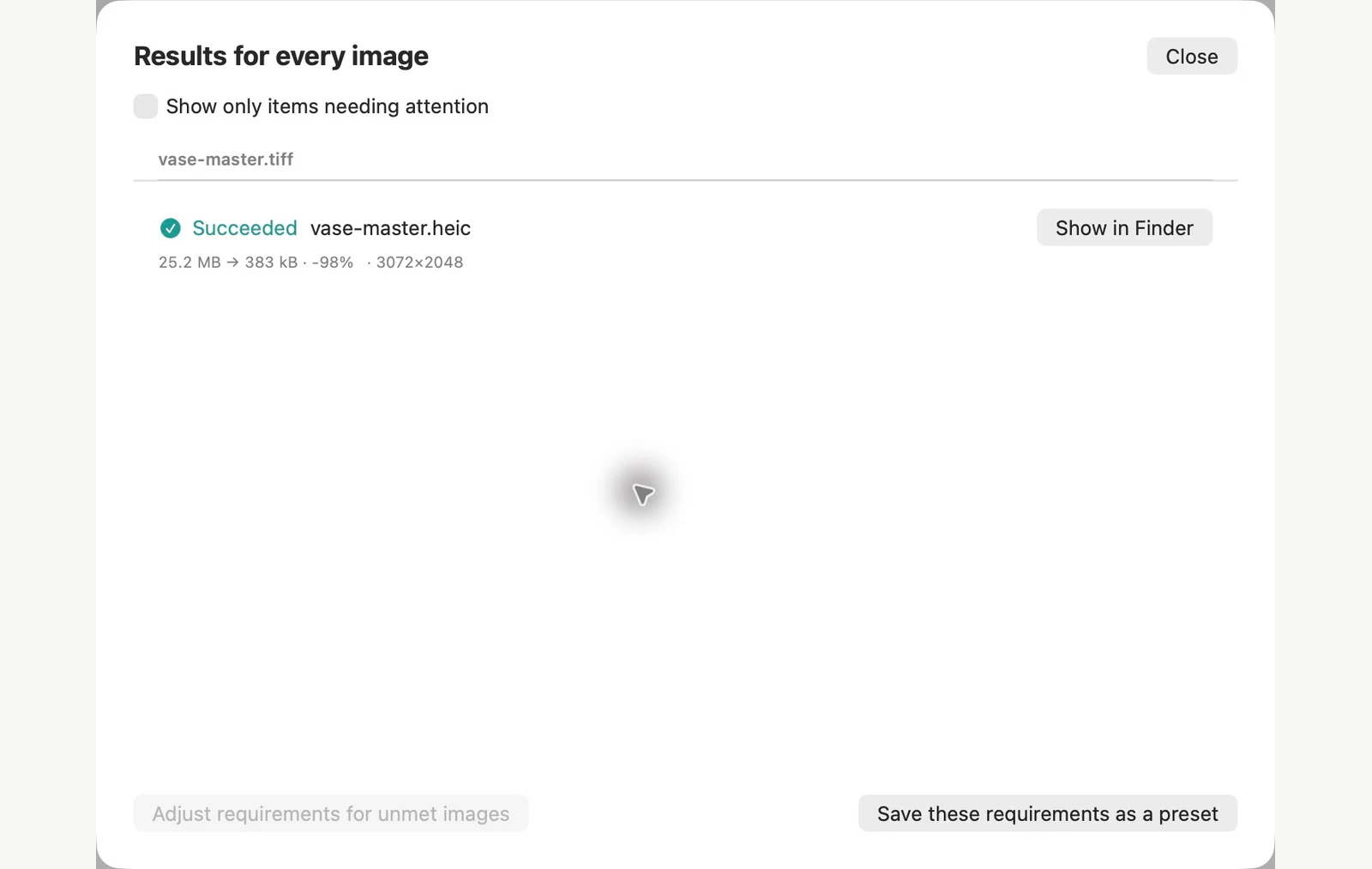
Measured on the sample files shown. Your results depend on your originals and settings. The ceramic-vase photograph is an AI-generated sample. The app screenshots and exported file measurements are real.
A couple of common questions
Is this a lossless backup?
No. Keep original files for an archival master. The output is a compact secondary collection.
Does it remove GPS?
The archive preset preserves metadata. Choose a sensitive-metadata removal policy instead when preparing public sharing copies.
Put the workflow to work.
Open PixRinse, add a few images and start with the settings above.
Download for MacFree: up to 10 images per batch and one output per source. Compare Free & Pro.