 PixRinse
Screenshots show the English app. Preset names and controls are also available in your app language.
Your starting point
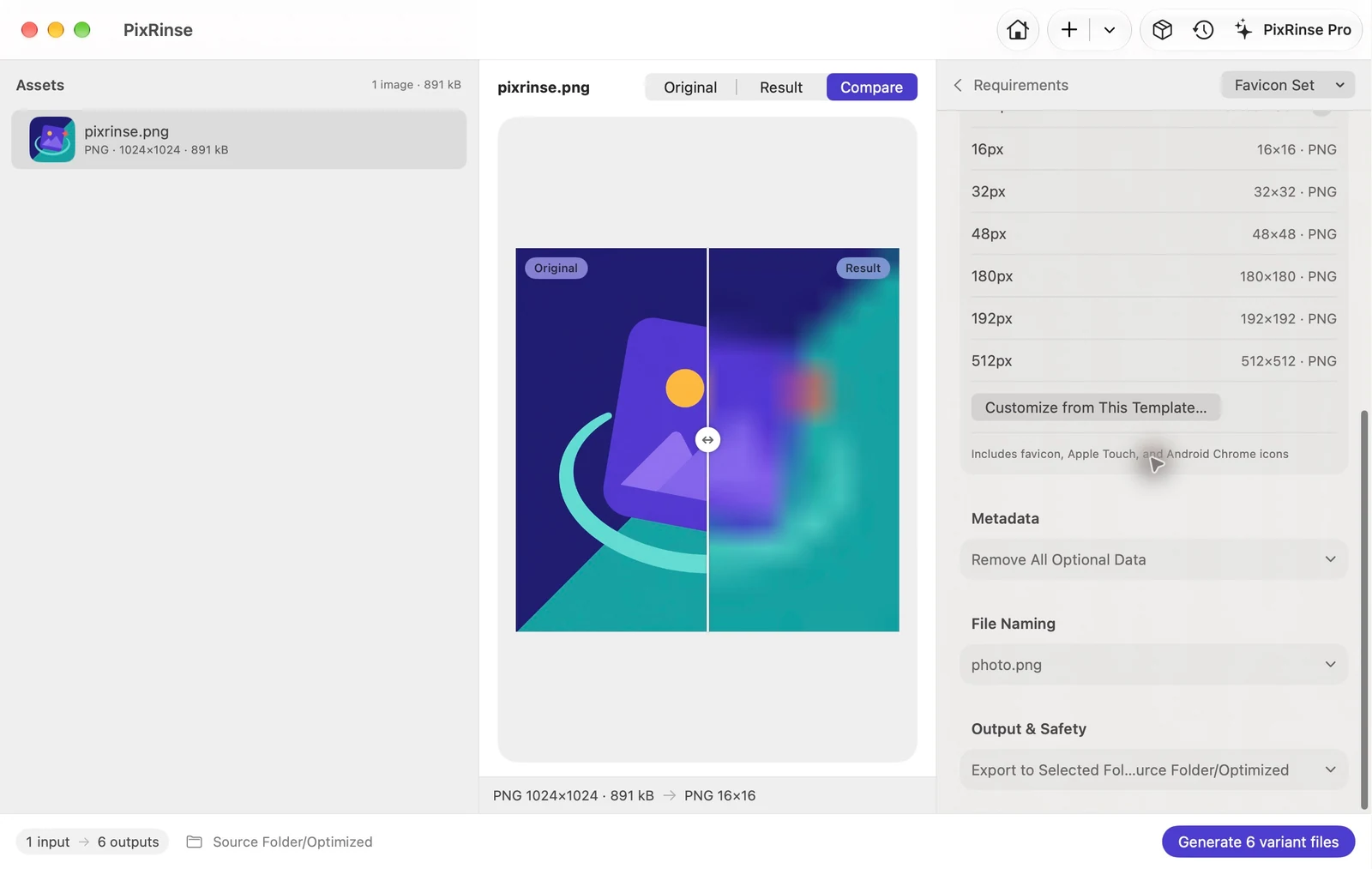
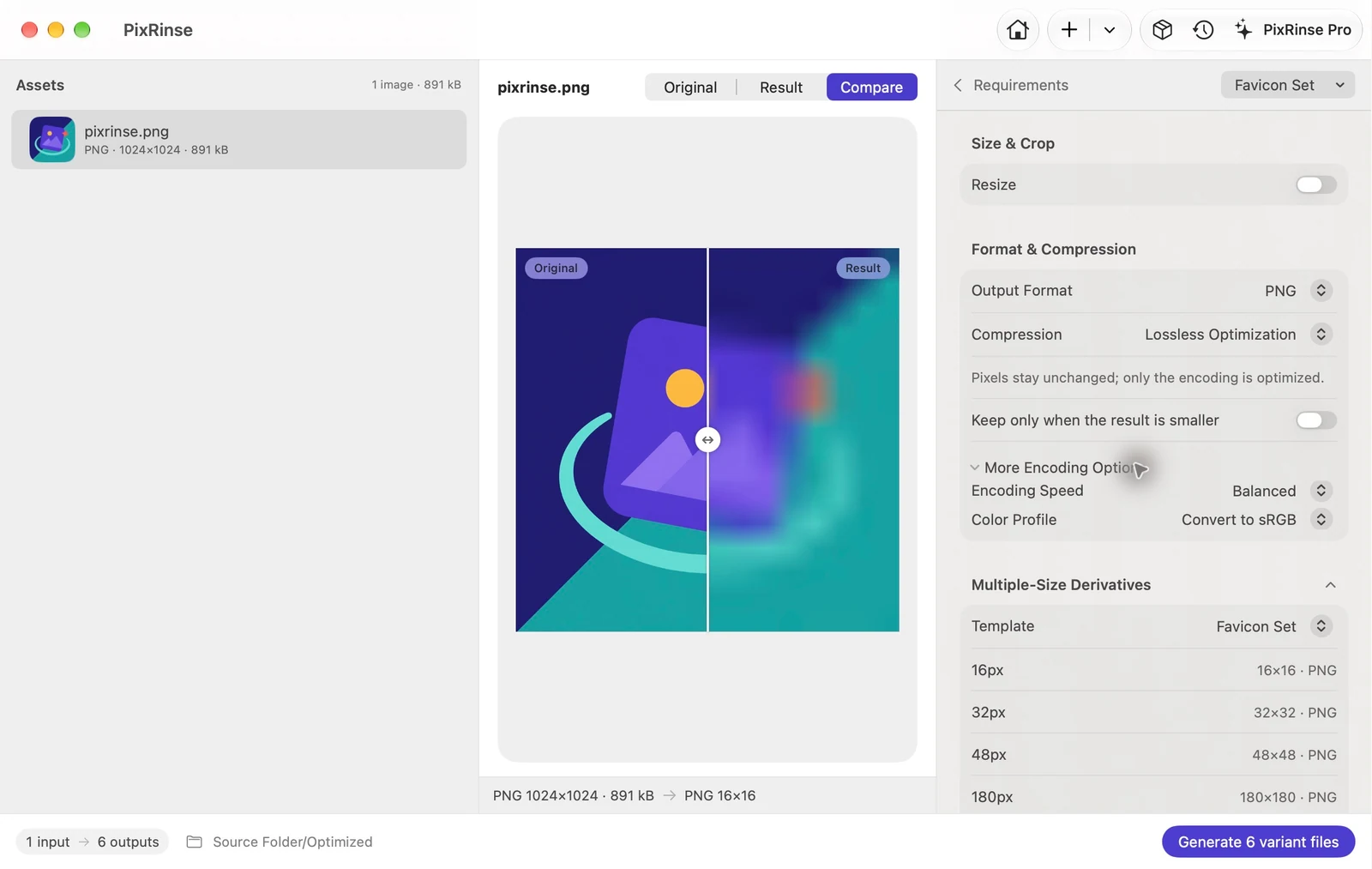
Use Favicon Set in PixRinse, then review these settings against your actual destination.
| Favicon PNGs | 16 / 32 / 48 px |
|---|---|
| Apple Touch PNG | 180 px |
| Web-app PNGs | 192 / 512 px |
| Color | sRGB |
How to do it
Prepare a square source mark
Use a source at least as large as the largest icon you need. Simplify fine details that may disappear at 16 px.
Choose Favicon Set
Review the six sizes. The template uses a centred cover rule, so a non-square source may be cropped.
Inspect the smallest outputs
Check the 16 and 32 px files at actual size. Automatic resizing cannot replace deliberate optical adjustments for a complex brand mark.
Export and add your references
Add the PNG files to your website and reference the relevant sizes in the HTML head and web-app manifest.
THE FILES FROM THIS WALKTHROUGH
What this example produced
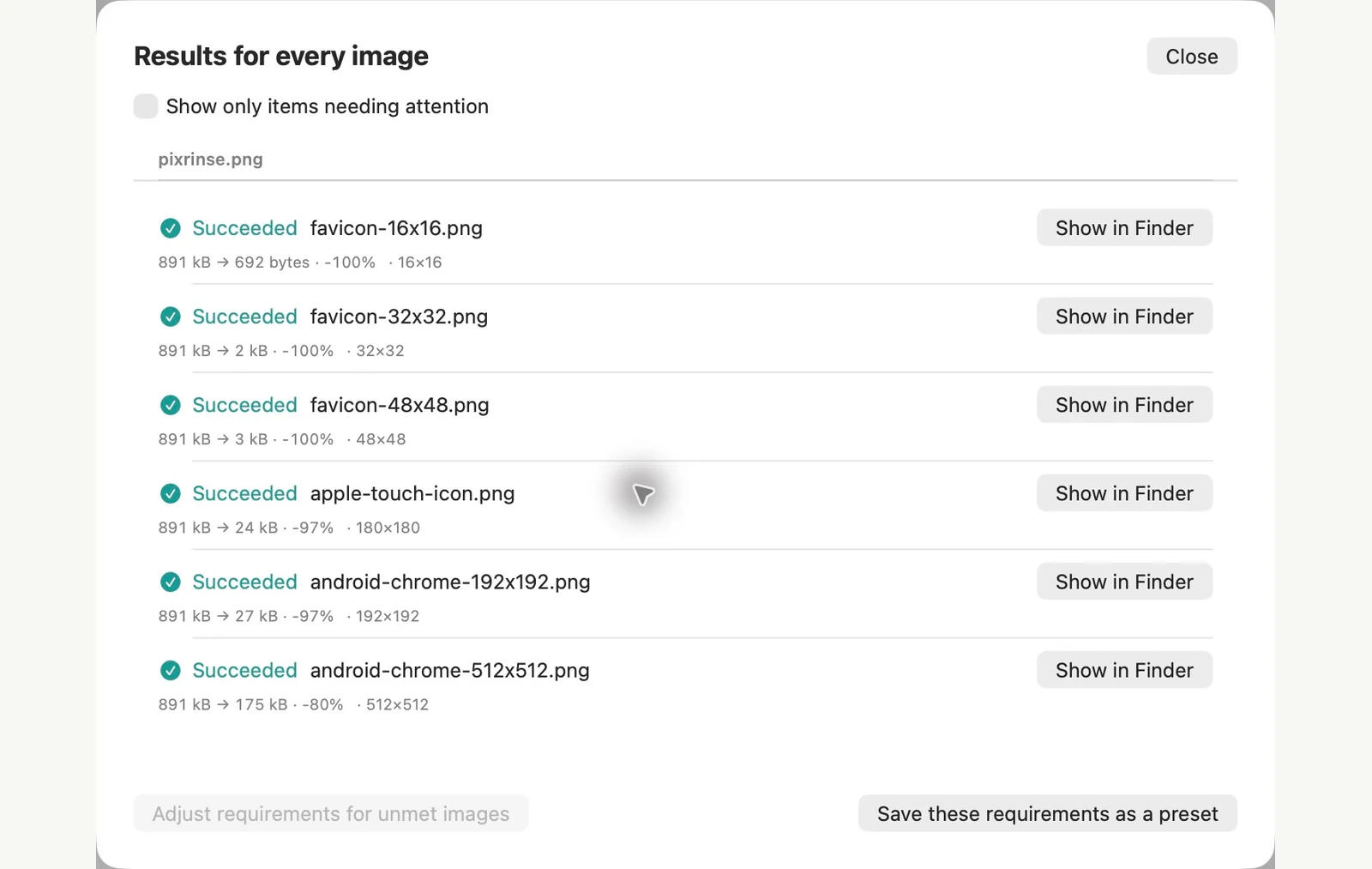
A 1024 × 1024 square mark produces six PNGs without the non-square-source warning. Every exported file contains an sRGB profile.
- Square source
- 1024 × 1024
- PNG exports
- 6
- Color profile
- sRGB on every output
| File | Format | Pixels | Bytes |
|---|---|---|---|
| android-chrome-192x192.png | PNG | 192 × 192 | 26,980 |
| android-chrome-512x512.png | PNG | 512 × 512 | 174,868 |
| apple-touch-icon.png | PNG | 180 × 180 | 23,839 |
| favicon-16x16.png | PNG | 16 × 16 | 692 |
| favicon-32x32.png | PNG | 32 × 32 | 1,751 |
| favicon-48x48.png | PNG | 48 × 48 | 3,093 |
Measured on the sample files shown. Your results depend on your originals and settings. This walkthrough uses owned PixRinse artwork on square or transparent sample canvases.
A couple of common questions
Does it create favicon.ico?
No. The built-in set exports six named PNG files.
Will a wide logo work?
A square source is preferable. The cover rule can crop a wide source, so review the preview carefully.
Put the workflow to work.
Open PixRinse, add a few images and start with the settings above.
Download for MacFree: up to 10 images per batch and one output per source. This workflow’s multiple outputs require Pro. Compare Free & Pro.