THE IMAGE PREP APP FOR MAC
Every image.
Ready to go.
Smaller files. The right dimensions.
A whole batch, ready for whatever’s next.
Compress, convert and deliver images with less busywork. All processed on your Mac.
Never uploaded to the cloud for processing. Work confidently with private photos and confidential images.
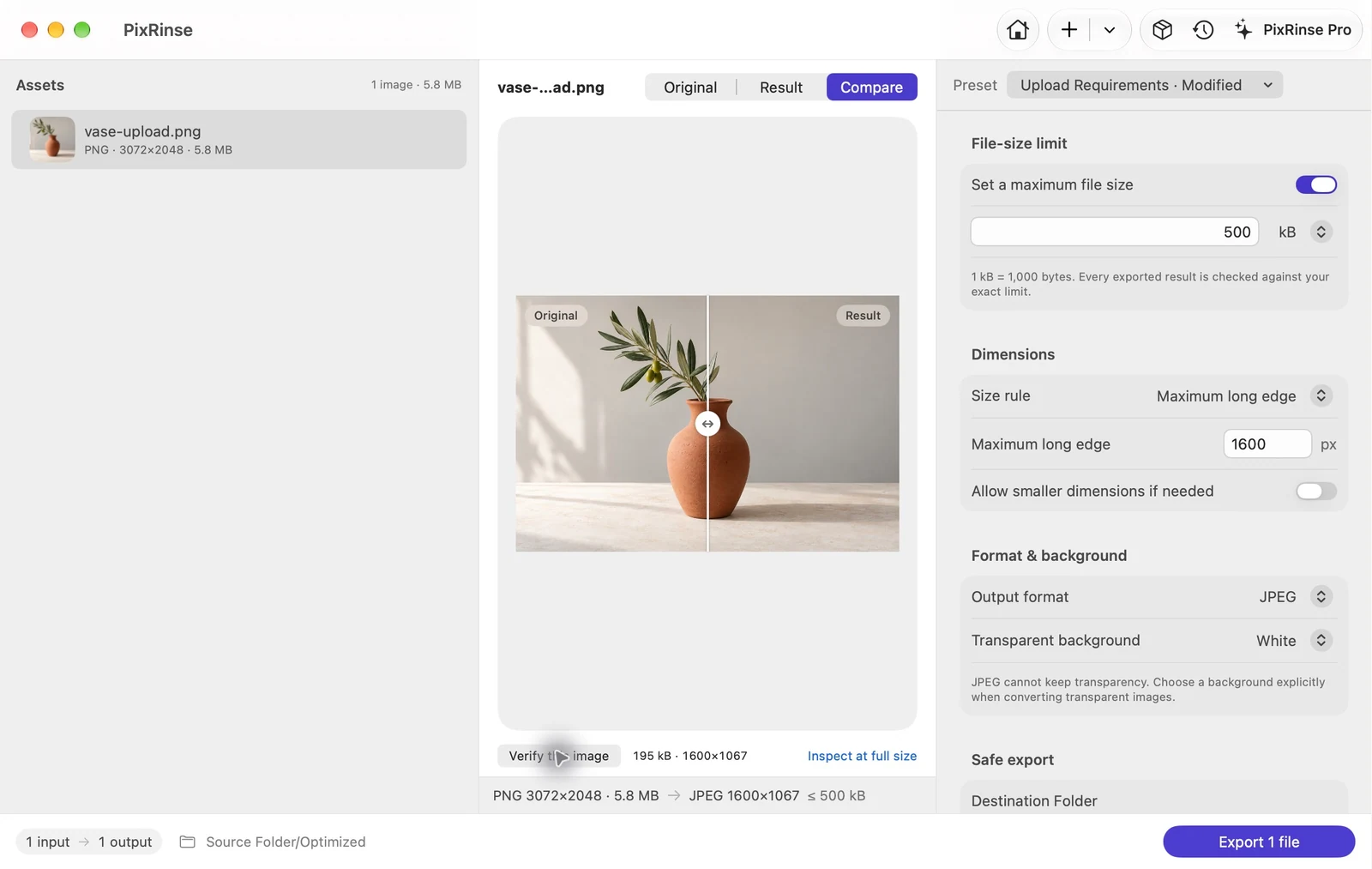
Actual Mac app · Generated sample images · Preview shown before export
Private images. Local processing. No cloud upload for compression, conversion or resizing.
Originals stay yours. Built-in presets export copies.
Ready to repeat. Save settings. Reuse your workflow.
FROM “ALMOST RIGHT” TO READY
A file-size limit is just the start.
Bring the format, dimensions and privacy settings together. Then see what you’re actually going to get.
Set the brief. Check the result.
Choose a maximum file size, dimensions and format. Verify a preview, export copies and review which files meet the requirements.
Follow this workflow ↗Good-looking images. A lighter page.
Start with Web High Quality: WebP, a 1920 px long edge and sRGB. Inspect the preview and adjust it for your layout.
Follow this workflow ↗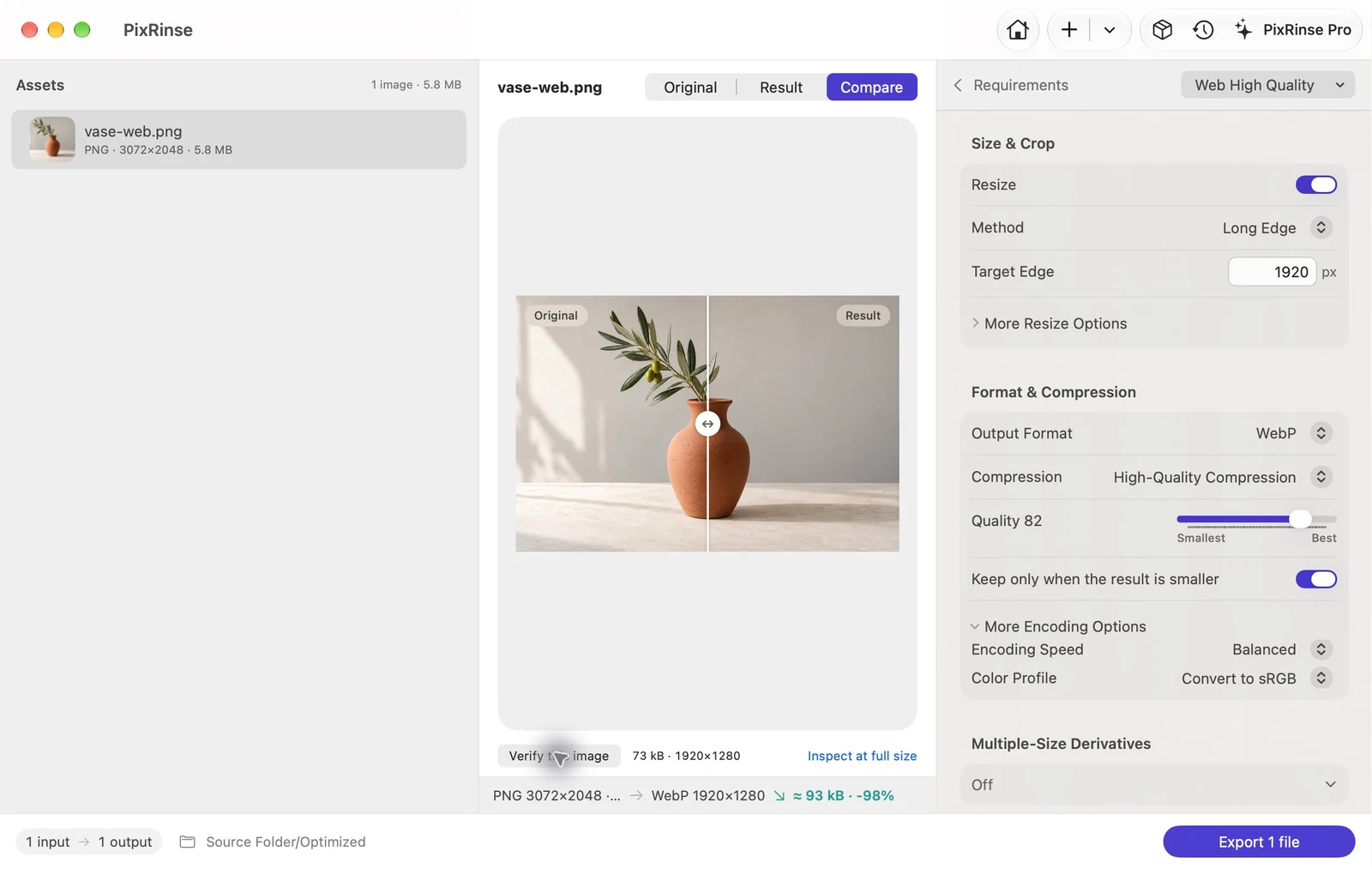
One canvas. A more consistent catalogue.
Put your existing product photos on a centred, white 1200 × 1200 canvas. Check the composition before publishing.
Follow this workflow ↗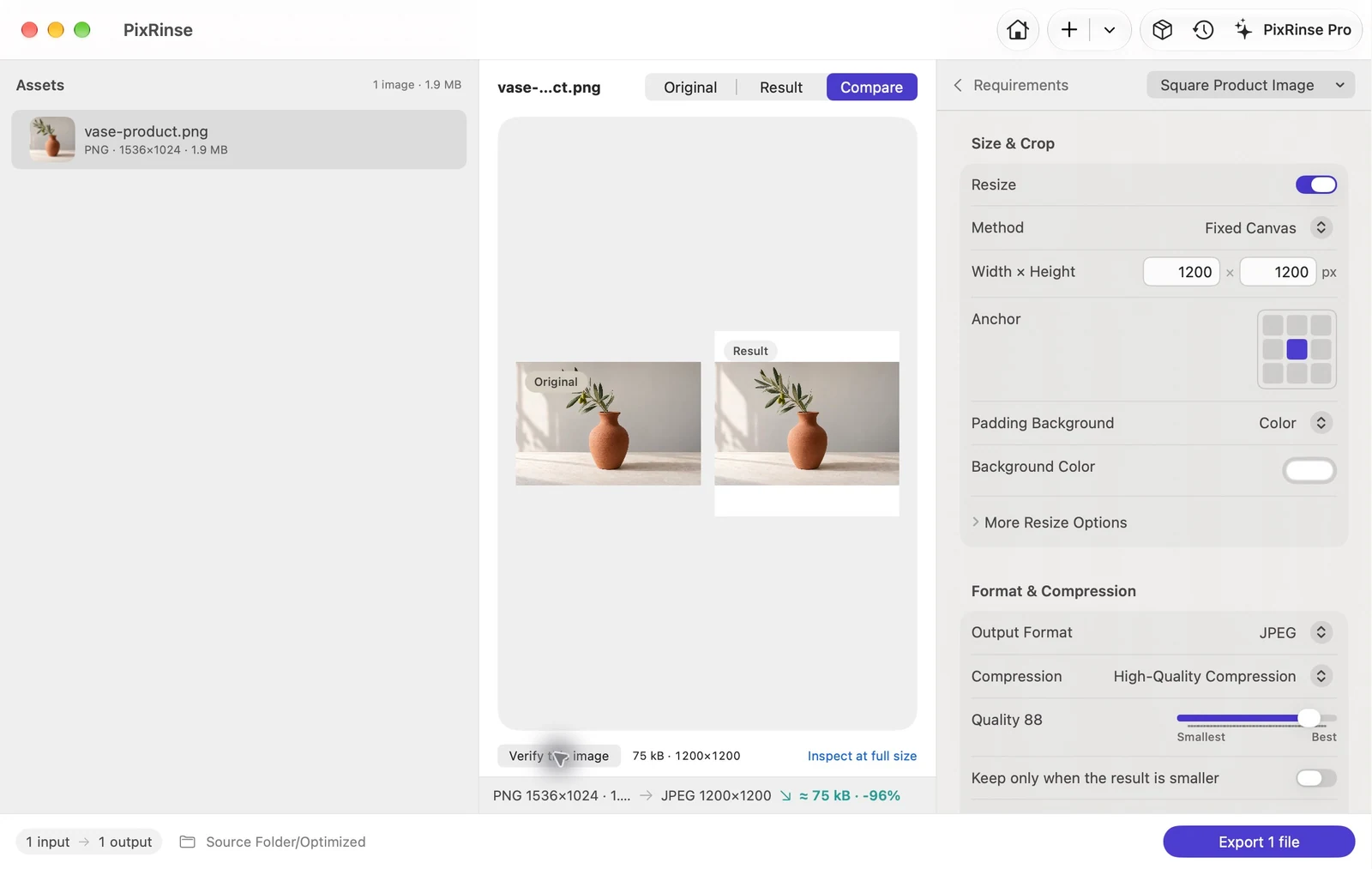
One original. Every useful width.
Generate 320, 640, 1280 and 1920 px WebP variants directly from the original. Multiple outputs per source are included in Pro.
Follow this workflow ↗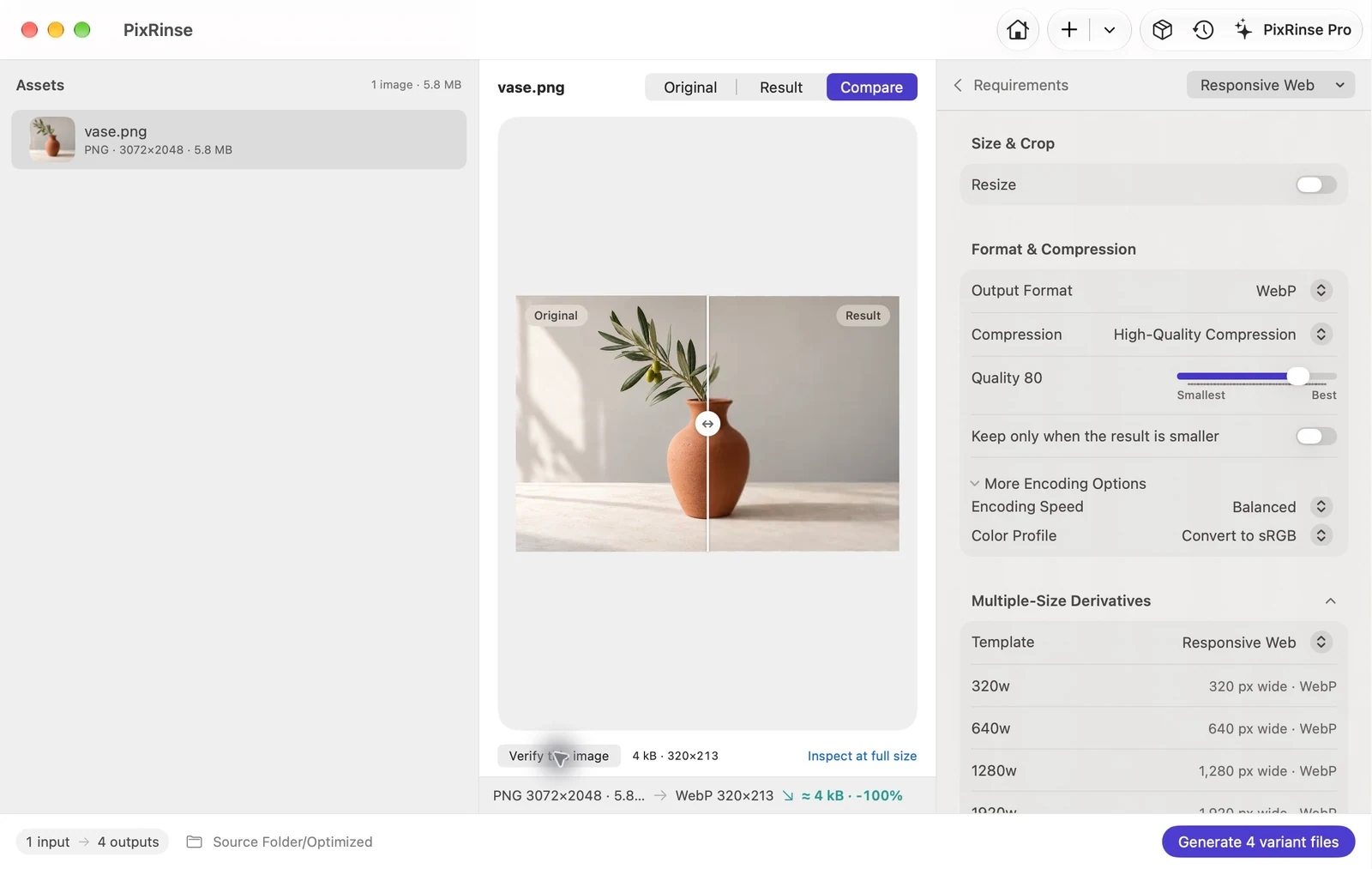
FOR THE WORK THAT COMES BACK
Same images.
New brief.
Already handled.
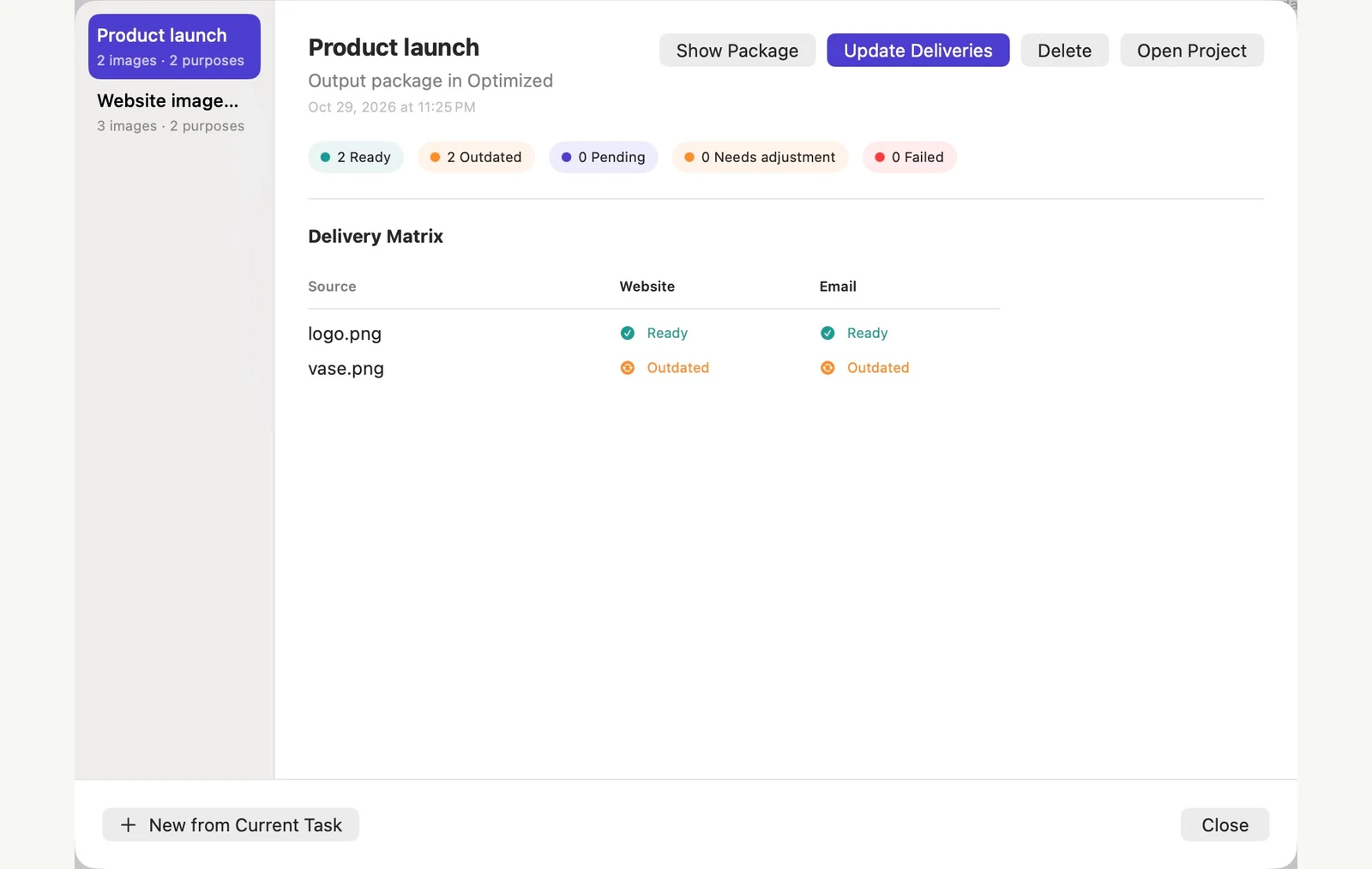
Keep sources and delivery purposes together in a Delivery Project. See what’s ready, what changed and what needs an update.
Try one project free: 3 sources and 2 purposes.
Expand your workflow with Pro.
A LITTLE LESS MANUAL WORK
Drop. Set. Deliver.
A quick one-off or the same job next week.
Start simple. Keep the settings that work.
- 01 / BRING YOUR IMAGES
A few files.
Or a whole folder.Add supported images, including files in subfolders. Review the source list before you run the job.
- 02 / GIVE THEM A PURPOSE
Start from a preset.
Make it your own.Choose an upload limit, a web export or a product canvas. Fine-tune format, size, naming and metadata.
- 03 / CHECK AND FINISH
See the plan.
Keep control.Inspect a preview, export copies, then review actual results. Save a preset for next time.
YOUR FILES DESERVE SOME CARE
A shorter journey
for your images.
They stay here.
Your images don’t need a trip through a server to get ready for sharing.
- Image processing on your Mac
- No account required
- Export copies with the built-in presets
- Deliberate metadata and replacement controls
Optional feedback and App Store purchases use network services.
START WITH WHAT YOU NEED TO DO
Real tasks.
Useful starting points.
Meet an upload limit
Compress an image to 500 KB on Mac
Read the guide EverydayMake HEIC photos easy to share
Batch convert HEIC to JPG offline on Mac
Read the guide Web & designPrepare images for the web
Batch convert images to WebP on Mac
Read the guide Privacy & safetyShare photos without the location
Remove GPS location data from photos on Mac
Read the guide Web & designGive product photos a consistent canvas
Make 1200 × 1200 white-background product images on Mac
Read the guide Developer assets · ProBuild an iOS scale set
Generate iOS @1x, @2x and @3x image assets on Mac
Read the guideSEE THE WORKFLOW
A closer look at a calmer workflow.
Does one purchase unlock the full app?
One-time lifetime purchase. Unlocks the full app. No subscription or recurring payments.
What can I do with PixRinse?
Compress, convert and resize batches, set a file-size limit, manage metadata and export multiple sizes. Delivery Projects organise repeated exports around sources and output purposes.
Do my images leave my Mac?
Image processing happens locally. PixRinse does not automatically upload your source images or exports. Optional feedback and App Store purchases use network services.
What is included for free?
Up to 10 images per batch, one output per source, one saved custom preset, and one Delivery Project with up to three sources and two purposes. Pro expands these limits and enables multiple-size workflows.
Will the app overwrite my originals?
Built-in presets export copies. If you deliberately switch to replacing originals, PixRinse offers preflight checks, backup controls and history-based rollback while the required backups remain available.
Which image formats are supported?
Inputs include JPEG, PNG, WebP, HEIC, TIFF, BMP and GIF. Output formats include JPEG, PNG, WebP, HEIC and TIFF, depending on codec availability. This is a still-image workflow; do not assume animation is preserved.
Can it guarantee any file-size limit?
No. A strict byte limit may conflict with dimensions or quality. PixRinse checks exported results and reports unmet requirements so you can decide what to adjust.

A lighter way to finish
Your next batch,
already less work.
Start with a few images. Find your everyday workflow.
Download for MacmacOS 14 or later · Free to start · No account required