 PixRinse
Screenshots show the English app. Preset names and controls are also available in your app language.
Your starting point
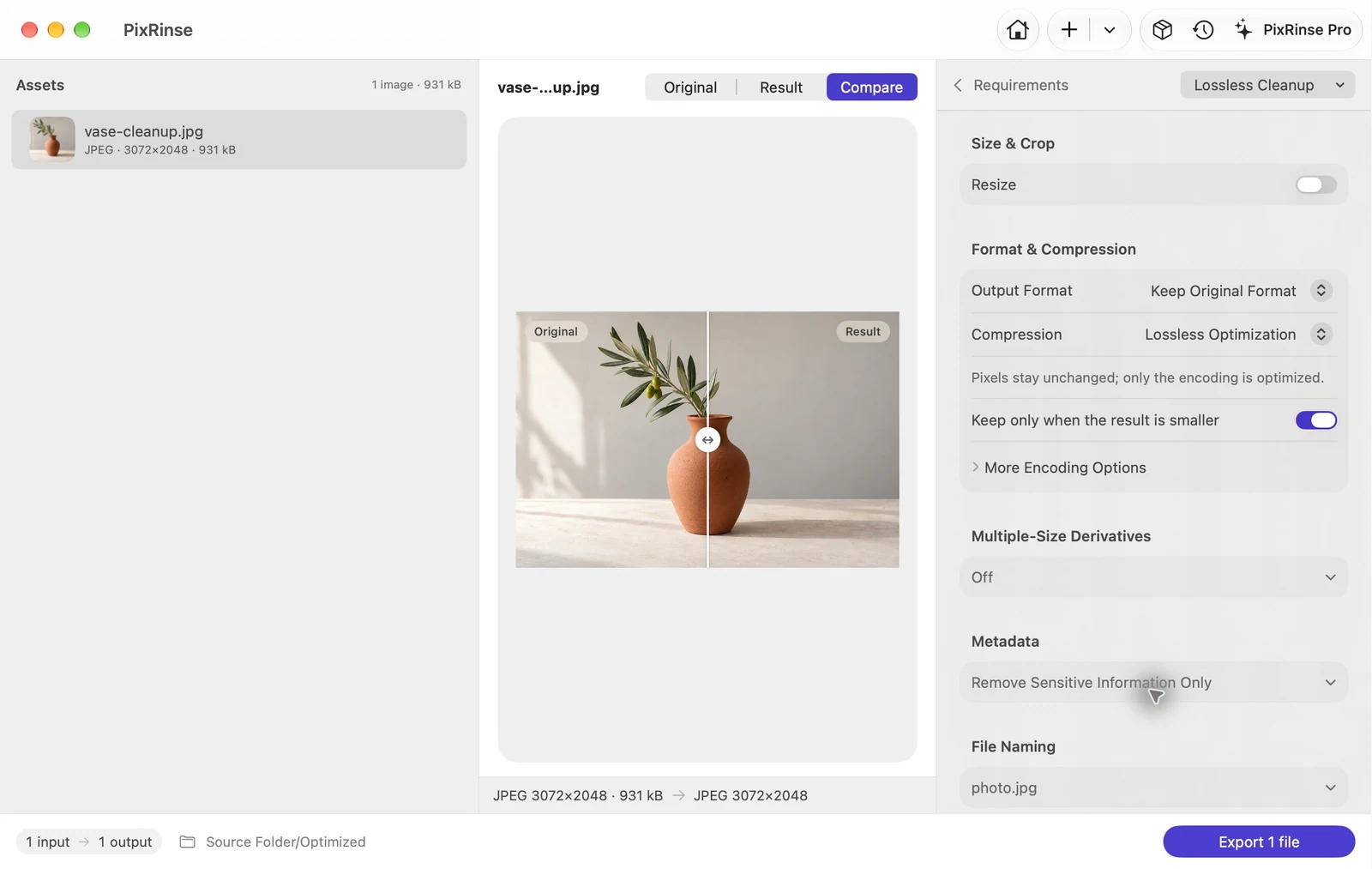
Use Lossless Cleanup in PixRinse, then review these settings against your actual destination.
| Format | Keep original |
|---|---|
| Compression | Lossless |
| Metadata | Remove sensitive metadata |
| Keep result | Only when smaller |
How to do it
Import supported image files
Start with a small representative set. A “lossless” label should describe the actual operation on the file, not a blanket assumption about every format.
Select Lossless Cleanup
The preset keeps the original format, does not resize and removes sensitive metadata. Review whether capture dates and copyright information should be retained.
Review format-specific behavior
PNG, WebP and TIFF have supported lossless paths. JPEG and HEIC can use source-copy cleanup when the format is unchanged and no raster transform is requested.
Export and inspect the result
Review skipped files and output status. The preset keeps results only when smaller, so there may be little or no saving on already optimised sources.
THE FILES FROM THIS WALKTHROUGH
What this example produced
The JPEG remains 3072 × 2048. Removing metadata saves only 52 bytes in this sample, while its decoded pixels remain exactly equal to the source. Small savings are normal for this kind of cleanup.
- Input size
- 930,922 bytes
- Output size
- 930,870 bytes
- Decoded pixels
- Unchanged
- GPS and device serial
- Removed
| File | Format | Pixels | Bytes |
|---|---|---|---|
| vase-cleanup.jpg | JPEG | 3072 × 2048 | 930,870 |
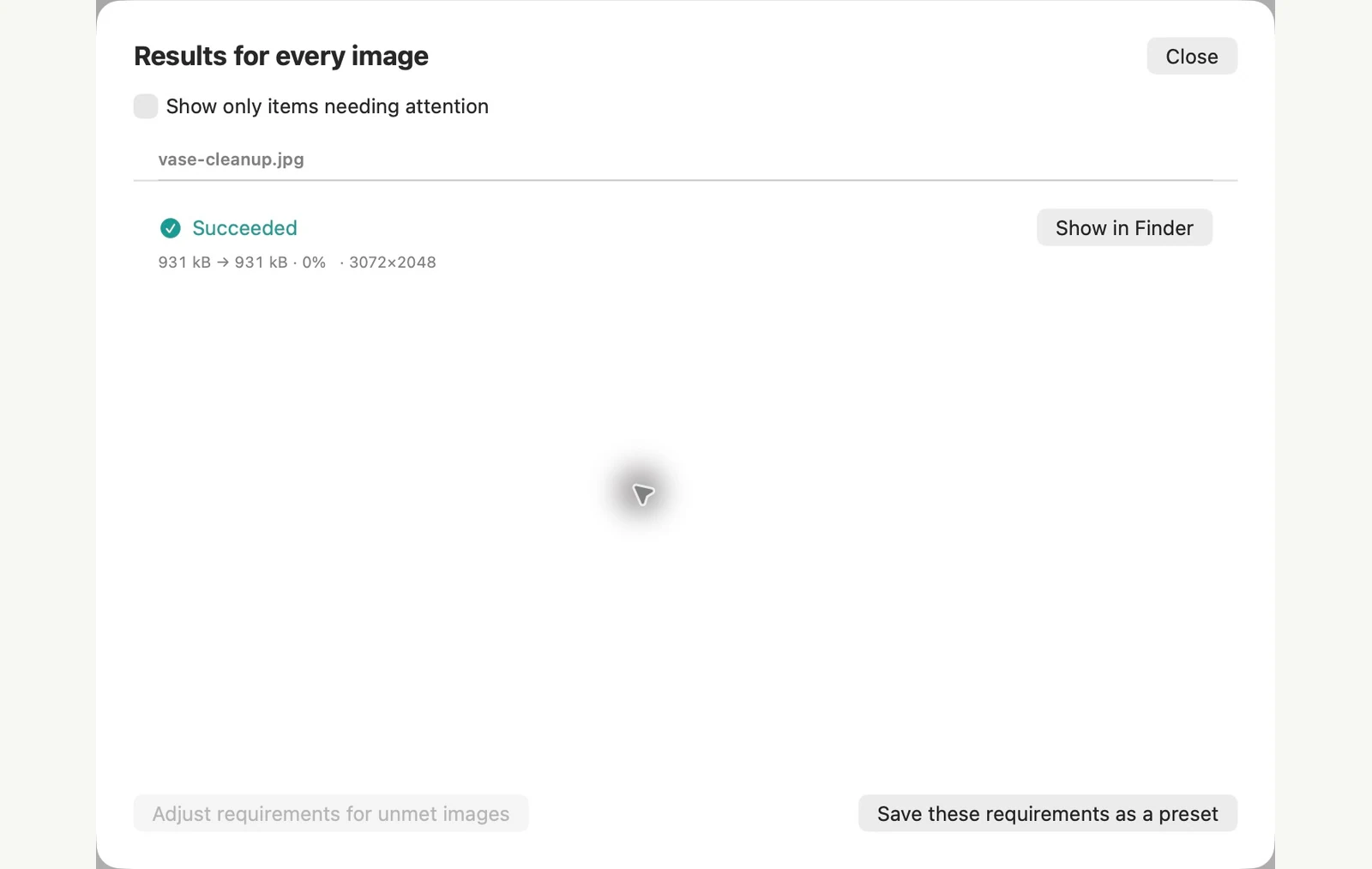
Measured on the sample files shown. Your results depend on your originals and settings. The ceramic-vase photograph is an AI-generated sample. The app screenshots and exported file measurements are real.
A couple of common questions
Does PixRinse do lossless JPEG recompression?
It does not claim coefficient-level JPEG optimisation. Eligible JPEG cleanup can copy the compressed image payload while changing the container metadata.
Why was an output skipped?
With “keep only if smaller” enabled, a larger or equal-size result may not be retained. Review the reported reason.
Put the workflow to work.
Open PixRinse, add a few images and start with the settings above.
Download for MacFree: up to 10 images per batch and one output per source. Compare Free & Pro.